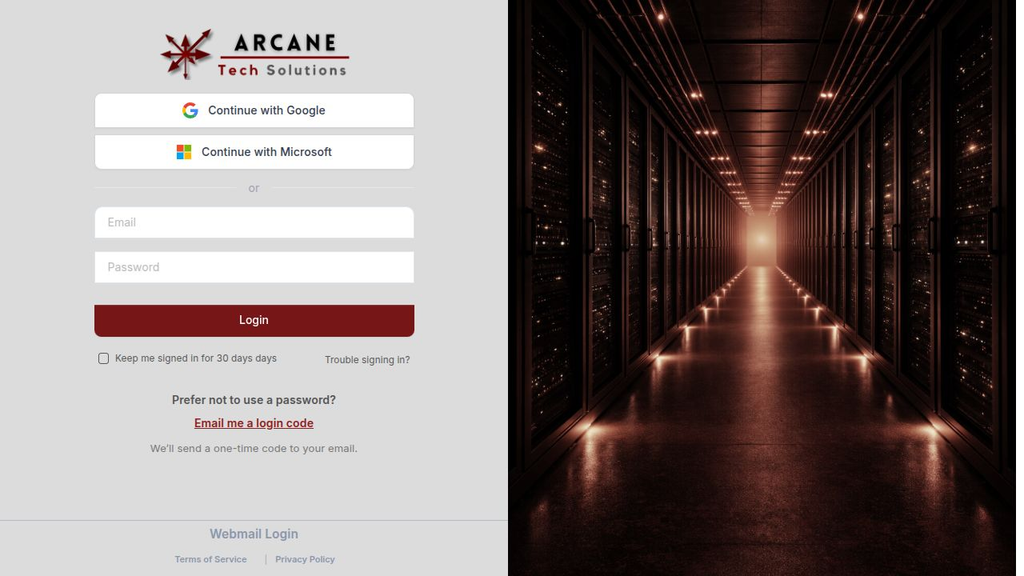
The Arcane Tech client portal is the sign-in point for your account. The public login page offers an email and password form, Google and Microsoft sign-in buttons, account recovery, and an email login-code option. The portal is separate from Arcane Mail webmail: use webmail to read your business email.
Sign in with your portal account
- Open portal.arcanetechct.com.
- Enter the email address associated with your portal account.
- Enter your portal password and choose Login.
Use Keep me signed in for 30 days only on a device you trust. Sign out when you finish on a shared computer.
Your portal account is created through an invitation. If you have not received one or are unsure which email address was invited, check the invitation sent by Arcane Tech before trying a different address.
Other sign-in options
The login page displays Continue with Google and Continue with Microsoft. These options are for accounts that have been connected to the portal sign-in method. Seeing a button does not mean your Google or Microsoft account is already linked. If you have never linked it, use your portal email and password or the recovery option first.
You can also choose Email me a login code. Enter the email address associated with your portal account and follow the instructions delivered to that inbox. Treat a sign-in code like a password: do not forward it or put it into a support request. If you did not ask for a code, you can ignore the message and report unexpected repeated attempts.
If you forgot your password
Select Trouble signing in? on the portal login page. Enter your portal email address and choose Continue. Follow the recovery steps shown for your account and check the matching inbox for the recovery message.
If no message arrives, check the address you entered and your junk folder. Allow a few minutes before requesting another message. If you still cannot recover access, use the public support form and tell Arcane Tech which address should have access. Do not send your password.
Finding your way after sign-in
Your portal view depends on the services and permissions assigned to you. You may see account information, files, support conversations, invoices or other assigned material. If a section described elsewhere in this knowledge base is missing, that does not always mean your account is broken. It may be hidden for your role or not part of your services.
When reporting a missing item, say what you expected to see, the account you used, and which page you opened. A screenshot of the menu can help, as long as it does not expose private client information.
Portal access and email access are separate
The Webmail Login link on the portal’s public login page opens Arcane Mail. Your mailbox password and portal password may be managed separately. Recovering your portal password does not automatically reset your mailbox password.
Start with How to Log Into Your Email for mailbox access. Use How to Submit and Track a Support Request for help with a service.