An invoice tells you what you are being charged for, how much is due, and when payment is due. Review those details before paying, especially if you have more than one service or a recurring charge.
Understand the parts of an invoice
A typical invoice identifies the service or project, each billed item, the amount, the due date and any applicable payment instructions. For example, an invoice might list a one-time website change and a separate monthly care-plan charge. Those are different charges even when they appear on the same invoice.
If a service name, amount, billing period or tax looks wrong, ask for clarification before paying. Include the invoice number in the request; it is more useful than saying “the latest invoice.”
Where to find an invoice
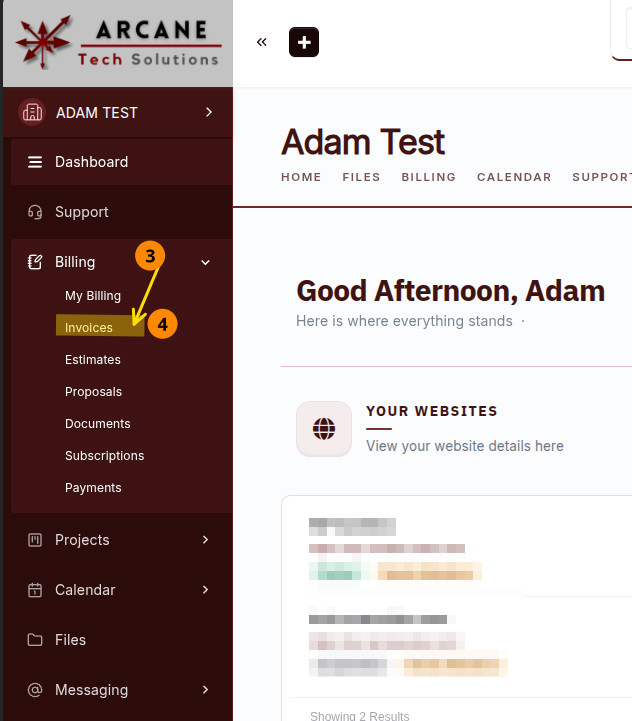
Login into the client portal, here you can see your invoices by navigating to Billing > Invoices. An invoice can also be opened through a payment link when one is sent. Your Arcane Tech portal may label or arrange these areas differently, so follow the invoice notification or the link provided for your account.
In the invoice list, open the invoice and check its status and due date. Keep a copy for your records if a download or print option is offered.
How a payment works
An invoice may offer an online Pay Now option or give other payment instructions. The available payment methods depend on how your invoice was generated any payment options you may have agreed to; a payment button may be absent when online payment is not offered.
- Open the invoice from the portal or its payment link.
- Check the invoice number, items, total and due date.
- Choose the payment option shown on that invoice.
- Complete payment on the payment screen, then keep the confirmation or receipt.
Do not pay a second time merely because the invoice has not updated immediately. First check your payment confirmation and account activity.
Recurring invoices and automatic payments
A recurring invoice means a new invoice may be issued on a schedule. It does not by itself mean your payment method will be charged automatically.
Automatic charging depends on the subscription or payment authorization set up for your account. Review the amount, frequency and authorization before agreeing to recurring payment. If you are unsure whether an invoice will charge automatically, ask Arcane Tech to clarify before making a separate payment.
Receipts, payment questions and corrections
SuiteDash can provide payment records and receipts, but what is visible in your portal depends on the configuration and your account permissions. Keep the confirmation you receive after paying.
For a duplicate charge, failed payment, incorrect amount or invoice that still appears open after payment, use the support request form. Include the invoice number, date, amount and a transaction reference if available. Do not submit a full card number, bank account number or card security code.
If you need to change the billing contact or payment arrangement, say which business and invoice are affected. Changes to service scope, renewal or cancellation follow your agreement; an unpaid invoice alone does not explain those terms.